
Using StatusPro With Shopify Flow to Automate Order Operations
StatusPro plugs into Shopify Flow as both a trigger and a set of actions. Here is how to use that combination to automate the work your team does around order statuses.
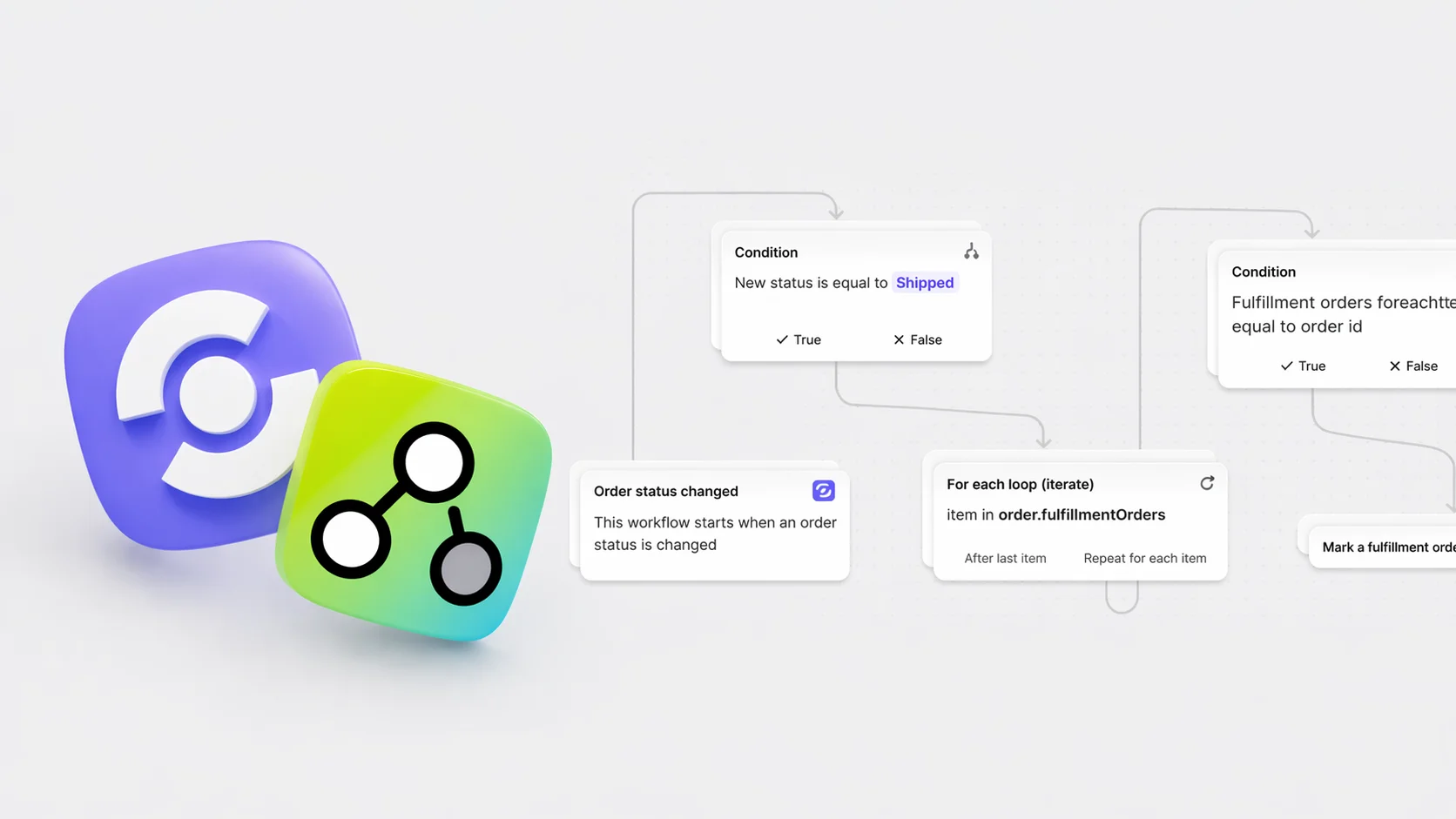
Custom statuses are more useful when they plug into the rest of your ops
A custom order status is a signal. It describes a real thing that has happened to the order. The question for most operations teams is not whether the status is accurate, but what should happen the moment it changes.
That is where Shopify Flow earns its place. StatusPro's Flow integration turns the status system into something the rest of your store can react to, and something the rest of your store can act on in return.
The trigger: order status changed
StatusPro exposes a single Flow trigger: order status changed. It fires every time an order moves from one custom status to another, regardless of whether the change came from a manual edit, a time-based rule, an API call, or another Flow workflow.
That trigger gives you a reliable hook into the exact moments that matter. A status change is almost always the cleanest signal in an operations pipeline, because it represents a real decision that something has progressed.
A few common workflows built on this trigger:
- Notify a Slack channel the moment an order hits "ready for pickup" so dispatch knows without checking the admin
- Send an internal email to sales when a VIP order moves to "shipped"
- Tag the order for reporting when it reaches a specific production milestone
- Trigger a warehouse label print the moment the status becomes "packed"
The trigger does not care which status. Your Flow conditions decide which transitions matter and which to ignore.
The actions: what Flow can do back
StatusPro exposes four Flow actions. Together they let Flow do more than just listen. It can change the order state as part of a workflow.
Change order status. The most direct action. Use it to move an order into a specific status based on any condition Flow can evaluate. High-value orders into "manual review." Wholesale orders into a dedicated B2B flow. Orders with a specific product into a pre-order track.
Set order due date. Flow can set a due date at the moment it is most useful, not just at order creation. A bulk order might deserve a later date than a single-unit order. A made-to-order product might need a longer window than an in-stock one. Flow can apply those differences automatically.
Add order comment. Every status change or due date shift tells a story. The comment action lets you leave an audit trail on the order itself, so the next person who opens it knows why it looks the way it does. "Status moved to backorder by Flow because SKU X was out of stock" is far more useful than a silent change six weeks later.
Get order status. This one is easy to underrate. It lets Flow read the current status and branch on it, which means your workflows can make different decisions depending on where the order already is. Do not advance an order that is already on hold. Skip a notification for orders already marked as refunded. Apply a rule only if the order has reached a specific stage.
Example workflows that combine both sides
Triggers and actions get more interesting when you chain them.
Fulfillment escalation. When the status changes to "in production" and the order value is above a threshold, set a closer due date and add an internal comment flagging the order for extra attention. Sales sees the comment, operations sees the tighter window, and the customer sees the same status as any other customer.
Automatic backorder handling. When a Flow workflow detects that a specific SKU is out of stock on a new order, change the status to "waiting on restock," set the due date to the expected restock window, and add a comment with the supplier reference. The customer sees a clear status and a date. Your team sees the reason.
Refund tidy-up. When Shopify fires a refund event, read the current status with "get order status" to check whether the order was already shipped, then move it to the appropriate post-refund status and add a comment summarising the reason. The order page stays accurate without manual effort.
Pre-order branching. When the status changes to "pre-order confirmed," use a Flow action to set a longer, range-based due date and send an internal notification to the ops lead so the batch can be planned for.
Each of these workflows takes minutes to build in Flow and removes a small recurring task from someone's day. Stacked across a few dozen orders, the saved time is significant.
Why the combination matters
Most Flow-based automations in Shopify stop at tagging, emailing, or editing the order. StatusPro's integration extends Flow into the part of the order that the customer sees most: the status and the due date.
That turns Flow from a tool your team uses to automate internal work into a tool that also controls the post-purchase experience. The same condition that tags an order for operations can update what the customer sees on the order page, in the same workflow, without any extra step.
Getting started
The StatusPro trigger and actions appear inside Flow alongside every other Shopify integration. If you are already using Shopify Flow for tagging, segmentation, or notifications, adding status-aware logic is usually a small addition to workflows you have already built.
A practical starting point: pick one status change that currently triggers a manual task for your team. Build a Flow workflow around it. Measure how much time it saves. Repeat.
Final takeaway
Custom statuses are most powerful when the rest of your store can respond to them and contribute to them. StatusPro's Shopify Flow integration makes that two-way connection explicit, with a trigger for every status change and actions for changing statuses, setting due dates, adding comments, and reading current state.
StatusPro gives Shopify merchants the tools to turn every order status transition into an automated, auditable operations workflow without writing code.