
Using QR Codes to Update Shopify Order Statuses at the Point of Work
A printed QR code on the order sheet is the fastest way to close the gap between a real-world event and a customer-facing status. Here is how StatusPro's QR scan and photo upload work in practice.
The status page only stays accurate if updating it is easier than not
Every custom status system runs into the same friction. The order moves in the real world. It gets packed, it leaves the workshop, it is dropped at the customer's door, and someone has to translate that event into a status change on a screen. The bigger the gap between the event and the update, the more likely the status page drifts.
Merchants solve this in different ways. Some batch updates at the end of the day. Some rely on fulfillment events to carry the load. Some just accept that certain stages will never be reflected in real time. None of those are great answers for a workshop, a warehouse floor, or a delivery route, where the person closest to the event is rarely sitting at a laptop.
A QR code on the order sheet changes that equation.
How StatusPro's QR workflow works
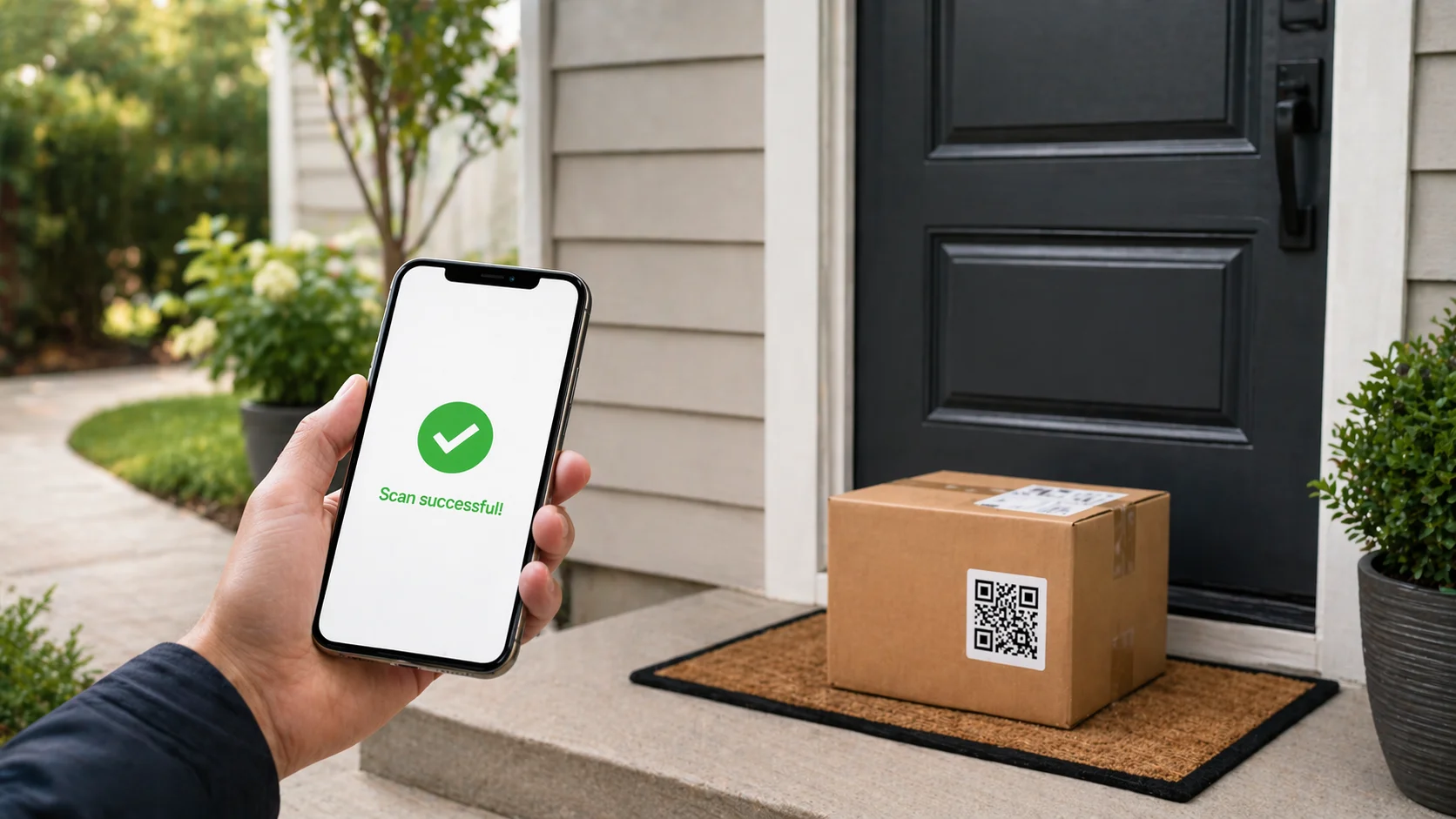
Every order in StatusPro has a QR code that encodes a direct link to that specific order. The code can be printed on a pick sheet, a packing slip, a job card, or a delivery manifest. Anyone on the team with a phone and a merchant login can scan it.
The scan opens a focused screen for that order. From there, the merchant can do two things:
- Trigger a status change. The available statuses are limited to the ones that order is actually allowed to move to next, so there is no scrolling through an irrelevant list and no risk of picking the wrong one.
- Attach a photo. The same screen supports uploading a photo from the phone's camera, which becomes part of the order's history.
The whole flow takes a few seconds. Scan, tap the next status, optionally take a photo, done. The customer-facing order page updates immediately.
Why this matters for physical operations
The value of QR-driven updates is not theoretical. It is the difference between a status change that happens when the event happens, and a status change that happens later, if at all.
A few operational realities that a QR workflow handles well:
- The person nearest the event is rarely near a computer. A driver at the customer's door, a maker at a workbench, and a packer at the end of a conveyor are all in the same situation. A phone is already in their pocket. The admin panel is not.
- Typing an order number is error prone. Scanning a code removes a step and removes the most common way an update gets applied to the wrong order.
- Photos belong where the event happened. A proof-of-delivery photo captured at the door is accurate. A photo taken later, from memory, is not.
The underlying point is that the system used to update the status should be available at the same moment the status actually changes. A printed QR code is the lightest possible version of that.
Proof of delivery for local deliveries
Local deliveries are the clearest use case. A driver arrives at the customer's address, scans the QR code on the delivery manifest, moves the status to "delivered," and attaches a photo of the package at the door.
That single action replaces several that used to happen separately:
- The driver no longer has to text or message the office to confirm the drop.
- The office no longer has to update the status manually later in the day.
- The customer no longer waits until tomorrow to see that their order actually arrived.
- The photo becomes part of the order record, not a loose file somewhere in a phone gallery.
For brands running their own last-mile delivery, the difference is measured in customer tickets. "Is my order delivered?" stops being a question because the answer is on the order page the moment the driver leaves the driveway.
Workshop and made-to-order milestones
Custom and made-to-order brands tend to have the most stages to communicate, and the least reliable signals to drive them. Shopify's fulfillment status does not know that a piece has been cut, dyed, sewn, or finished. Those stages matter to the customer, but only the maker knows when they have happened.
A QR code on the job card makes each milestone a scan. When a piece moves from cutting to assembly, the maker scans the card and advances the status. When it is ready for quality check, another scan. When it is packed, another.
The benefit compounds with the number of stages. A brand with four production stages that used to require four admin logins per order now requires four scans at the bench. Photos from each stage can be attached if the brand wants to build a visible production story, or skipped if they do not.
Warehouse scans and batch stations
In a warehouse, the QR code usually lives on a pick sheet or a label on the picking bin. A packer at the end of the line scans the sheet, moves the order to "packed and ready to ship," and the order is queued for carrier pickup.
If the station handles batches, the QR scan pairs well with bulk actions or Shopify Flow rules that apply to every order moving through the same point. One scan per order keeps the accuracy per-order; the downstream automation handles the shared work.
Photos also matter here. A picture of the packed box, the contents before sealing, or the label on the outside can settle most damage-in-transit or wrong-item claims in seconds.
Why photos belong on the status, not in a separate app
Merchants who have already solved part of this problem often do so with a separate photo tool. The driver uses one app for delivery photos, another for status updates. The maker snaps pictures on their phone and uploads them to a shared drive. The packer's photos live in a WhatsApp thread somewhere.
The problem with that arrangement is not the photos. It is the disconnection. A photo that lives outside the order record is hard to find when someone needs it. Attaching the photo at the moment of the status change keeps the evidence with the event, on the same order page the customer and support team already look at.
The customer does not need to see every internal photo. Public versus internal visibility is controlled per upload. What matters is that the photo exists on the order itself, not in a side channel.
How it fits alongside the rest of StatusPro
QR scanning does not replace the other ways statuses change. It complements them.
- Defaults still fire on order received.
- Fulfillment events still move orders to shipped.
- Time-based rules still cover the middle stages for most orders.
- Shopify Flow still handles logic-driven changes based on order attributes.
- The StatusPro API still connects external production and warehouse systems.
QR scans are the mechanism for the stages where the event is physical, the person is mobile, and the update needs to happen in seconds rather than minutes. For delivery, workshop, and warehouse work, that is most of the real stages on the order.
Getting started
Two practical starting points:
- Pick one physical stage that currently lags. Often it is proof of delivery, the packing bench, or a specific production milestone. Print the QR code on whatever paperwork already travels with the order (pick sheet, job card, delivery manifest) and ask the team to scan it at that stage for a week. Compare the lag before and after.
- Decide what warrants a photo. Delivered orders almost always benefit from a photo. Production stages are optional. Packing stations depend on your claim rate. You do not have to capture images at every stage; you only need to capture them where the evidence earns its keep.
Both of these take an afternoon to set up and usually pay back in the first week of scans.
Final takeaway
A custom status is only as accurate as the easiest available way to update it. For physical operations, the easiest way is rarely a browser tab. It is a printed code, a phone camera, and a screen built to do one thing.
StatusPro gives Shopify merchants QR-driven status updates and photo uploads so that deliveries, workshop milestones, and warehouse scans show up on the customer-facing order page the moment they happen, not the morning after.